Overview
Test data only. All names, companies and amounts are synthetic. All accounts are staging test accounts. No video shows a password.
How to use this page
- During the demo: follow the Demo script. Each segment has its backup videos next to it. Play a video if the live staging app is slow.
- To test it yourself: follow the owner QA guide. It gives the sign-in, the clicks and the result you must see for each flow.
- To see the proof: the staging results, the Hire → Pay link results and the journey results show each test, its result and its videos.
- To check coverage: the story map lists all 109 stories from Pay Phase User Stories for Design. The filterable story map has the same data with filters.
- Every video: the All videos section groups all recordings by flow.
What passed
- Staging flows 1, 5, 6, 7 and 8 pass: Client sign-in and setup, one-user Pay Run and USD Funding, test Payout Batch marked Paid with remittance PDF, payment reports, Ops queues and reconciliation.
- Staging flows 2, 3 and 4 are partial: no Pay Super Admin test account to assign a Pay Agent, and no hourly Contractor on the test Clients.
- Live Hire → Pay link passes on staging: Hire sign-in, Allow, Pay authenticator and Recovery Codes, Company review with Hire details, dashboard, and "Add from Emerging Hire".
- End-to-end journeys: 21 of 21 tests pass on main 9c73f0a (16 journeys, local test database).
Known gaps
- An account that stops before its Company is made must restart through the sign-up entry.
- The first "Add from Emerging Hire" asks to Reconnect once.
- No browser test for crypto Funding yet.
Staging site: emergingpay-staging.up.railway.app · Hire staging: app-tester.emerginghire.com
Demo script (19 min)
Emerging Pay demo script
24 November 2026 · 19 minutes
Use the recorded test examples if the live app is slow. Open the clips before the demo. Use short sections of each clip to stay within the time shown.
| Minute | Show | Role | Stories | Video if live is slow | Talking point |
|---|---|---|---|---|---|
| 0–2 | Client setup | Client Admin | PAY-1.01, PAY-1.03, PAY-1.04, PAY-1.06, PAY-1.08, PAY-A.03 | Journey 01, Client Adminopen · Staging 04, Client Verification submissionopen | Show the checklist and Pay Terms. Jump to Client Verification and the Payout Limit in the fallback clip. |
| 2–4 | Contractor onboarding | Client Admin → Contractor → Pay Agent → Pay Approver | PAY-2.03, PAY-7.01, PAY-7.03, PAY-7.04, PAY-7.06, PAY-8.20 | Staging 02, Client Admin sends Invitationopen · Staging 02, Contractor accepts Pay Invitation and Termsopen · Staging 02, Contractor submits test USD methodopen · Journey 03, Pay Agentopen · Journey 03, Pay Approveropen | Send the Invitation. Show Contractor Terms, Payout Method and the staff review. |
| 4–6 | Timesheet | Contractor → Client Admin | PAY-3.01–3.04 | Journey 04, Contractoropen · Journey 04, Client Adminopen · Staging 03, Client loads the default Timesheets viewopen | Submit and correct test hours, then show Client Admin approval. Use Journey 04 if staging has no hourly Contractor. |
| 6–8 | Pay Run approval | Client Admin → Client Approver | PAY-4.02, PAY-4.03, PAY-4.05–4.07, PAY-4.09 | Journey 05, Client Adminopen · Journey 05, Client Approveropen | Show who is included, then ask a different Client Approver to approve with a fresh code. |
| 8–10 | USD Funding | Client Approver → Pay Agent → Pay Approver | PAY-5.01, PAY-5.03, PAY-8.02–8.03 | Staging 05, one-user approval and USD claimopen · Staging 05, Pay Agent records receipt and proposes matchopen · Staging 05, Pay Approver confirms matchopen | Use the approved one-user Client B Pay Run. Show the Funding reference, claim and two-person match. |
| 10–13 | Test Payout reaches Paid | Pay Agent → Pay Approver → Client Admin | PAY-6.01, PAY-8.09–8.11, PAY-8.13–8.15 | Staging 06, Pay Agent builds and checks the batchopen · Staging 06, Pay Approver approves batchopen · Staging 06, Pay Agent exports test file and imports Paid resultopen · Staging 06, Pay Approver confirms Paid resultopen · Staging 06, Client sees Paid Pay Run and Payout Recordopen | Use Client B. Show the test batch, approved result import and Paid Payout Record. |
| 13–15 | Remittance | Contractor | PAY-7.11–7.12, PAY-N.11 | Staging 06, Contractor downloads remittance adviceopen · Journey 08, Contractoropen | Open Payment History from the Paid notice and download the remittance advice and statement. |
| 15–17 | Ops | Pay Agent → Pay Approver | PAY-8.01, PAY-8.18, PAY-8.24 | Staging 08, Pay Approver queues and Activity Logopen · Journey 13, Pay Agentopen · Journey 13, Pay Approveropen · Journey 15, Pay Approveropen | Use the staging clip for queues, the Activity Log CSV and sign-off history. Play the journey clip only for a sign-off excerpt. |
| 17–19 | What's next | Owner | PAY-1.02, PAY-2.02, PAY-7.01, PAY-5.02 | Staging Hire Company prefill and Pay dashboardopen · Staging Find entry, Reconnect and empty listopen · Journey 17, Client Adminopen | Show the Hire link and Company prefill. Use Journey 17 for a Find list with hires. End with the real Pay Provider and crypto Funding. |
Live Hire link
Hire staging has the Emerging Pay button. Use a Hire Business Owner to show Pay sign-in, Company prefill and the dashboard. If signup stops before Company creation, restart at the Pay signup link in the QA guide.
Open Contractors and select Add from Emerging Hire. The first run asked for Reconnect. The new Company has no Find hires. Use Journey 17 to show a list with hires, country selection and Invitations. The video uses a local fixture.
Staging shows one-user approval, USD Funding, a test Payout marked Paid and the remittance PDF. Staging also shows Hire Company prefill and Find reconnect. The journeys cover Timesheet submission and two-person Pay Run approval. All 21 tests passed on 9c73f0a across 16 browser journeys. Journey 17 uses a local Find fixture. Journey 07 has no crypto Funding test.
Owner staging QA guide · Story map
Source: DEMO_SCRIPT.md
Testing plan: owner QA guide
Emerging Pay staging QA guide for the owner
Use Emerging Pay staging and synthetic test data. Use the staging test account assigned to each role. Use Client A for flows 1–4. Use Client B and its Contractor for flows 5–7.
Use a separate browser session for each role. Keep the authenticator app ready. Use a fresh code for each action that asks for one. Keep the test inbox, credentials and Recovery Codes private.
1. Client sign-in and setup
Use the Client Admin for Client A.
- Select Sign in. Enter the account details, then the authenticator code. Select Verify and sign in.
- In Set up payroll, check Client Verification, Accept Pay Terms, Add Contractors and Add approvers.
- Open Team. Check that the list shows the Client Admin and Client Approver roles.
- Open Contractors. Check the rate, schedule, Payout Method and status columns.
2. Contractor Invitation and Payout Method
Use the Client Admin for Client A, the invited Contractor, a Pay Agent assigned to Client A and a Pay Approver.
- As Client Admin, open Contractors → Add Contractor. Enter a synthetic name and a unique test email that Mailpit receives. Select United States. Enter the effective month and a test USD rate.
- Select Review invitation. Check the details and enter a fresh code. Select Send invitation. The Contractor should show Invited.
- In the staging Mailpit inbox, find the latest Invitation for the test recipient. Open its link in the Contractor browser. Select Create account or sign in. Get the verification code from Mailpit if asked. Select Accept invitation → View setup status.
- Select Review Contractor Terms. Select both checkboxes. Select Accept Contractor Terms.
- Select Set up authenticator. Confirm the password. Scan the QR code, then enter the authenticator code. Save the Recovery Codes privately and select Continue.
- Select Choose Payout Method → USD account → Add details. Enter the synthetic bank details. Select Check account → Review Payout Method. Enter a fresh code and select Submit Payout Method.
- If Client A has no assigned Pay Agent, a Pay Super Admin opens Settings → Staff. Find the Pay Agent, select Assign Client, choose Client A and confirm with a fresh code.
- As the assigned Pay Agent, open Contractor checks and select the Contractor. Select Propose Payout Method → Continue and confirm with a fresh code.
- As Pay Approver, open the same Contractor. Select Confirm Payout Method → Continue and confirm with a fresh code.
- As Client Admin, check the masked USD Payout Method. Check the Ready month if the rate starts later.
3. Rates and Timesheet approval
Use the Client Admin and an active hourly Contractor on the same Client. Check that the Contractor has an eligible work period.
- As Client Admin, open the Contractor page. Check the current rate. To check a change, select Change rate. Enter a test rate and start month. Review the change and confirm it with a fresh code.
- As Contractor, open Rates to check the rate. Open Timesheets in the Contractor browser.
- Select Create timesheet. Choose the work period. Enter test hours and select Save draft.
- Select Submit timesheet. Check the review and confirm. The Timesheet should show Submitted.
- As Client Admin, open Timesheets. If necessary, select the Pay Run month in Filters. Open the submitted Timesheet.
- Select Approve → Continue. Enter a fresh code and select Approve timesheet. Refresh both views and check for Approved.
4. Two-person Pay Run approval
Use the Client Admin, a different Client Approver, the assigned Pay Agent and a Pay Approver for staff review.
- If Client A is still unverified, open Client Verification as Client Admin. Enter synthetic company details. Upload synthetic incorporation, Director ID, source of funds and proof of address files. Select Submit for review.
- As the assigned Pay Agent, open Clients → Client A → Client Verification. Wait for the document checks. Select Action → Approve. Enter a synthetic Pay Provider evidence reference and confirm with a fresh code.
- As the Pay Approver, open the same review. Select Confirm review and enter a fresh code.
- As Client Admin, open Pay Runs → Create Pay Run. Choose a period and select Create Draft. If a Draft already exists, open it. To refresh a saved review, open Edit Pay Date and select Save Pay Date.
- Check Summary and Not included. Verify the Pay Date, totals and reasons for exclusion. The Draft needs at least one eligible Contractor.
- Select Send for approval and confirm. Check for Waiting for approval.
- As the other Client Approver, open the same run and select Review Pay Run. Check the amounts, use a fresh code and select Approve with code. Check for Approved.
5. One-user Pay Run and USD Funding
Use the sole active Client B user, the assigned Pay Agent and a Pay Approver. The Client user needs both Client roles.
- As the Client B user, open Team. Select Manage on the active row. Keep Client Admin and add Client Approver if needed. Review and confirm with a fresh code.
- Open Contractors and check that a Contractor is Ready in the Pay Run period. Open or create the Draft in Pay Runs. Check the Contractor, Pay Date, total and Funding deadline.
- Select Send for approval and confirm. Open Review Pay Run. Use a fresh code and select Approve with code.
- Select Fund this run. Note the USD amount and Funding Reference. Select I've sent it. Choose Wire, enter test payment details and add an optional synthetic proof file. Select Confirm Funding sent.
- As Pay Agent, open Money in → Funding received → Record Funding received. Select Client B. Enter the matching amount, date, UTC time, sender and Funding Reference. Add a unique synthetic Provider Reference and select Wire. Confirm with a fresh code.
- As Pay Agent, open the receipt row. Check the amount and Funding Reference. Select Propose match and confirm with a fresh code.
- As Pay Approver, open the same receipt. Select Confirm Funding and confirm with a fresh code.
- As the Client B user, reopen the Pay Run. Check for Funded and zero Remaining Funding.
6. Test Payout Batch, Paid status and remittance
Use the Pay Agent, Pay Approver, Client B user and the Client B Contractor. Continue with the Funded Pay Run from flow 5.
- As Pay Agent, open Money out → Ready to pay. Select the Client B line and select Build Payout Batch (1).
- For an NGN bank batch, record the agreed test Pay Provider rate and quote time. Select Run checks and look for Checks passed. Submit the batch for approval with a fresh code.
- As Pay Approver, open Payout Batches and select the batch. Check the Client, rail and total. Select Approve Payout Batch and confirm with a fresh code.
- As Pay Agent, select Download bulk file and confirm with a fresh code. If there is no download, use Download bulk file again when it appears.
- Copy the test CSV. Keep its original header and row values. Append these columns in order.
```text
outcome,provider_reference,statement_entry,occurred_at,evidence_pointer,delivery_proof,failure_reason,funds_available,sent_provider_reference,sent_statement_entry,sent_occurred_at,sent_evidence_pointer
```
Set outcome to paid. Enter a unique synthetic Provider Reference and statement entry. Enter a UTC ISO timestamp and synthetic evidence and delivery references. Leave the other new fields empty.
- Select Import results file → Preview results. Check the Contractor and result. Select Send for approval and confirm with a fresh code.
- As Pay Approver, open the batch. Select Approve outcomes and confirm with a fresh code. Check that the outcome shows Paid.
- As the Client B user, open the Pay Run. Check Paid on the run and in Payouts → View Payout Records.
- As the Contractor, open Payment History → View details. Download the remittance PDF. Check that it shows the same Payout reference as the advice on screen.
- Close the advice. Select Download statement. Choose dates that include the Payout date. Download the PDF and check that it lists the Payout.
7. Payment query and report downloads
Use the Client B user and Pay Agent. Use the Paid Pay Run from flow 6.
- As the Client B user, open the Pay Run. Select Ask about this payment. Enter a test subject and message. Select Send query.
- As Pay Agent, open Queries and select the test subject. Send a reply. Check Answered, select Close query and check Closed.
- As the Client B user, open Payment queries. Check the reply and Closed status.
- Return to the Paid Pay Run. Select Download report (CSV) and Download report (PDF). Check the Contractor, amount, Paid status and Payout reference in both files.
8. Operations Overview, Daily Reconciliation and Activity Log
Use the Pay Approver.
- Open Overview. Check the queue counts and an available Due or Overdue UTC time.
- Open Money in → Daily Reconciliation. Select a working day. Review All Client totals and Differences. Open History and check the sign-off records.
- Open Activity Log and filter by Client B. Select Download. Check the UTC time column and the Client B rows in the CSV.
KAN-338. Open Pay from Hire staging
Use a Hire Business Owner with permission to link the test Company.
- In Hire staging, select Emerging Pay. You can also open the Pay signup link.
- Sign in to Hire as the Business Owner. Select Allow if Hire opens the consent page.
- Complete Pay authenticator setup if asked. Save the Recovery Codes privately. If Pay already has an authenticator, enter a fresh code.
- In Pay, check the Company details from Hire. Confirm them and check that the Pay dashboard opens.
- Open Contractors → Add from Emerging Hire. Select Reconnect if Pay asks. Complete the Hire authorization and return to Pay.
- The new test Company has no Find hires. For a list with hires, use the Find journeyopen. It shows country selection and Invitations with a local fixture.
If you stop before the Pay Company is created, restart with the Pay signup link. Check that it ends in intent=sign-up.
Known limits
- Run Funding and Payouts in test mode. Use USD Funding and synthetic evidence. Keep funds in the test environment.
- Use a Pay Agent assigned to Client A for flows 2 and 4. The staging recording stopped at the staff review because Client A had no assigned Pay Agent.
- Use an hourly Contractor for flow 3. The staging recheck confirmed the default view works after PR #214. The QA Clients had no hourly Contractors, so use Journey 04 to show submission and approval.
- Use a new Pay Run with an eligible Contractor to test Funding and Payouts again. Use the existing Paid run for a read-only check of the Payout Record, remittance and reports.
- Live bank checks, payout files and results need the real Pay Provider. Crypto Funding also needs legal approval.
Staging results · Demo script · Story map
Source: QA_GUIDE_OWNER.md
Staging test results
Emerging Pay staging results
Flows 1–4
Recorded on Emerging Pay staging on 24 November 2026. These flows use the two-person Client. The story IDs follow STORY_COVERAGE.md and the designer story list. The results describe the steps visible in the staging recordings.
| Flow | Designer story IDs | Result | Videos |
|---|---|---|---|
| 1. Client Admin sign-in and setup | PAY-A.03, PAY-1.01 (checklist), PAY-2.01. Team role display in PAY-A.01 and PAY-A.02. | Pass. Authenticator sign-in opened the Pay dashboard. The setup checklist, Team roles and Contractors list were visible. | Client Adminopen |
| 2. Contractor Invitation and USD Payout Method | PAY-2.03, PAY-7.01, PAY-7.03, PAY-7.04 and PAY-7.06 recorded through submission. PAY-8.20 staff decision pending. | Partial. The Contractor submitted a test USD Payout Method. The Pay Approver still sees Waiting for a Pay Agent. The Agent’s list omits the Contractor and the detail returns HTTP 404, Contractor not found. The Pay Agent and Pay Approver both returned to Operations Overview when they opened Settings → Staff. The assignment requires a Pay Super Admin. The QA notes list none. | Client Adminopen, Contractoropen, Pay Approveropen, Final Contractor enrollmentopen, Final USD Payout Methodopen, Final pending reviewopen, Final Pay Agentopen, Final Staff accessopen, Final pending USD reviewopen, Pay Agent recheckopen, Staff access as Pay Approveropen, Staff access as Pay Agentopen |
| 3. Rates and Timesheet | PAY-2.06 (rate display). PAY-3.01, PAY-3.03 and PAY-3.04 pending. | Partial. Railway staging web runs 6b3c496. The default Timesheets view returned HTTP 200 with submissionPeriod=current. The Hourly filter found zero Contractors on Client A and Client B. Change rate and Add Contractor displayed a read-only Fixed monthly rate type. The Contractor portal showed Timesheets are not required for your current rate and disabled Create timesheet. Submission and approval could not start. | Client default viewopen, Client month filteropen, Contractoropen, Final default Timesheets and rate controlsopen, Client B Hourly filteropen, Contractor Timesheetsopen |
| 4. Draft, submit and approve a Pay Run | PAY-4.01, PAY-4.03 and PAY-4.05 recorded. PAY-4.02 (eligible Draft), PAY-4.06, PAY-4.07 and PAY-4.09 pending. | Partial. Client A Verification remains In review with four documents. The Pay Agent’s list omits Client A and the detail returns HTTP 404, Client not found. The Pay Approver has no Confirm review action. The Client Admin saved the existing Pay Date and reloaded the December Draft. Both requests returned HTTP 200. The Draft showed 0 included, Payout Method change under review, and Funding deadline Unavailable. Send for approval stayed disabled and the second Client user had no Review Pay Run action. | Client Adminopen, Client Approveropen, Final Client Verification submissionopen, Final Client Verification statusopen, Final submitted documentsopen, Final Pay Agentopen, Final December Draftopen, Final Client Verification recheckopen, Pay Approver review stateopen, Pay Agent recheckopen, refreshed December Draftopen, second Client useropen |
Key screenshots are in the same flow folders as the videos. The manual QA guide gives the clicks and expected results.
Flows 5–8
| Flow | Designer story IDs | Result | Video paths |
|---|---|---|---|
| 05 · One-user Pay Run and USD Funding | PAY-4.01, PAY-4.02, PAY-4.03, PAY-4.06, PAY-4.07, PAY-4.09, PAY-5.01, PAY-5.02 (USD), PAY-5.03, PAY-5.04, PAY-8.02, PAY-8.03 | Pass. In Team, the sole Client B user added the Client Approver role and kept Client Admin. The same user submitted and approved the December Pay Run and submitted a synthetic USD Wire Funding claim. The Pay Agent recorded the receipt and proposed a match. The Pay Approver confirmed the match. The Client Pay Run showed Funded. | Client Bopen, Final Team rolesopen, Final approval and claimopen, Final propose matchopen, Final confirm matchopen, Final Funded Pay Runopen |
| 06 · Test Payouts and Contractor remittance | PAY-5.04, PAY-6.01, PAY-7.11, PAY-7.12, PAY-8.09, PAY-8.10, PAY-8.11, PAY-8.12, PAY-8.13, PAY-8.14, PAY-8.15 | Pass. The Pay Agent built a one-line batch and passed its checks. The Pay Approver approved the batch. The first export request produced no download within 20 seconds. Download bulk file again produced the test CSV. The Pay Agent imported a synthetic Paid result, and the Pay Approver approved it. Client B saw Paid in the Pay Run and Payout Records. The Contractor downloaded a remittance advice PDF with the same Payout reference as the advice screen. | Pay Agentopen, Client Bopen, Contractoropen, Final batch checks and submissionopen, Final batch approvalopen, Final export and importopen, Final outcome approvalopen, Final Paid outcomeopen, Final Client Paid statusopen, Final Contractor remittanceopen, Final remittance PDF |
| 07 · Payment query and payment report | PAY-8.23, PAY-6.05 | Pass. Client B reopened the existing query and saw the Pay Agent reply and Closed. The Paid December Pay Run offered both report downloads. The CSV and PDF showed the same Contractor, amount and Paid status. Both reports showed the same Payout reference as the remittance advice. | Client Bopen, Pay Agentopen, Final Client query and report downloadsopen, Final report CSV, Final report PDF |
| 08 · Operations Overview, Daily Reconciliation and Activity Log | PAY-8.01, PAY-8.18, PAY-8.24 | Pass. The Pay Approver verified 20 queues, one overdue UTC time, the Daily Reconciliation screen and sign-off history, and a CSV with 102 Client B Activity Log rows. | Pay Approveropen |
24 November staging recheck before the final recordings
Both Railway staging services deployed successfully after these settings were added to web and worker.
PAY_RUN_STAGING_CONFIGsupplies the calendar and test USD Funding instructions. A Draft keeps its saved review until it is refreshed. Saving the existing Pay Date recalculates the review. Seepackages/core/src/pay-runs/calendar.ts:8,packages/core/src/pay-runs/service.ts:351and the refreshed Draft.PAY_PAYOUT_STAGING_PRODUCTSpermits the test Payout products for dispatch.PAY_PAYOUT_KEY_VERSIONmakes the existing key version explicit. The code already defaulted to that version. Seepackages/core/src/contractor-setup/provider.ts:44andpackages/core/src/contractor-setup/crypto.ts:23.- The worker runs outbox, expiry and scan tasks. The worker paths do not use
BETTER_AUTH_SECRET. The web service already has that setting. Seeapps/worker/src/worker.ts:39. - Railway reported
SUCCESSfor both configuration deploys. The later staging deployments also reportedSUCCESS. Both services still list all three settings.
| Flow | Browser result and Railway evidence (UTC) |
|---|---|
| 2 | Contractor setup HTTP 200 confirmed accepted Terms, authenticator enrollment incomplete and no Payout Method. Staff queue HTTP 200 had no pending method for the Contractor. The Pay Agent detail returned Contractor not found. Railway logged 08:53:01.236 GET /api/staff/contractors 404 for the Agent and 08:53:01.290 GET /api/staff/contractors 200 for the Approver. The Agent needs a Client A assignment to review this Contractor. |
| 3 | The default page displayed We could not complete the request. Try again. The response was HTTP 503, REQUEST_FAILED, Request could not be completed. Railway logged 08:54:58.444 GET /api/timesheets 503 for the default and 08:54:58.838 GET /api/timesheets 200 after selecting December. The Contractor API also returned HTTP 200 and the Contractor's monthly rate needs no Timesheet. |
| 4 | Pay Run detail returned HTTP 200. The saved review had zero included Contractors and canSubmit: false. Send for approval was disabled, so the browser made no submit request. See packages/core/src/pay-runs/review.ts:343 for when the app calculates a deadline. |
| 5 | The open Draft had one included Contractor, a future deadline and an effective Pay Plan. Client Team returned HTTP 200 with one active Client Admin and no active Client Approver. The browser made no submit request. See packages/core/src/pay-runs/service.ts:139 and :655. |
| 6 | Railway logged 08:53:28.360 GET /api/staff/pay-operations/batches 200 and 08:53:36.438 GET /api/contractor/statement 200. The statement download contained PDF data. |
| 7 | Both format requests returned Check the Pay Run and try again. Railway logged 08:54:40.469 GET /api/pay-runs/{id} 404 for CSV and 08:54:40.503 GET /api/pay-runs/{id} 404 for PDF. Report links depend on the Pay Run outcome. See packages/core/src/pay-runs/report.ts:61. |
The earlier Timesheets fault was in the default month path. The same Browser session loaded the list with November and December selected. The default request enters the extra month lookup in packages/core/src/timesheets/submissions.ts:19. the internal route converts the underlying exception to the generic 503. The Railway runtime logs did not show the exception. To fix it, use the existing Client calendar lookup in packages/core/src/pay-runs/service.ts:417 for the fallback month, validate the resolved period, and add a regression check for submissionPeriod=current with and without a Draft under the staging runtime role. Log the operation name and error code to confirm the underlying exception before changing the query.
Source: staging/RESULTS.md
Hire → Pay live link results
KAN-338 live staging result
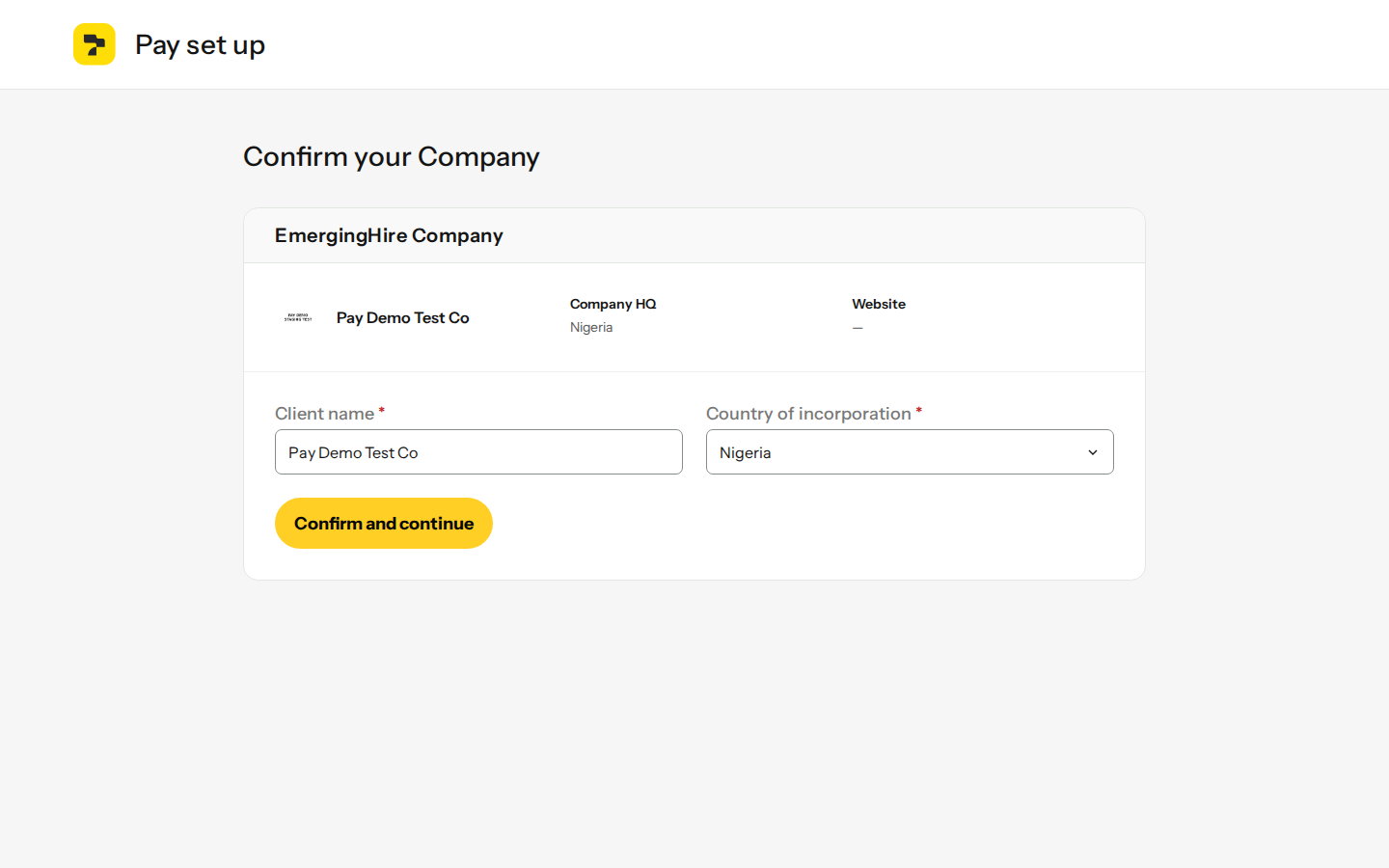
Test Business Owner: the demo Business Owner test account. Hire Company: Pay Demo Test Co. HQ: Nigeria.
| Step | Result |
|---|---|
| Sign in to Hire | Pass. The Business Owner dashboard opened. |
Start Pay with intent=sign-up | Pass. Pay returned HTTP 303. |
| Hire OAuth consent | Pass in the initial enrollment recording. Hire reused the approval for this run. |
| Pay callback and existing two-step sign-in | Pass. The callback returned HTTP 303 and Pay accepted the authenticator code with HTTP 200. |
| Authenticator setup and Recovery Codes | Pass in the initial enrollment recording. The run used the enrolled authenticator. |
| Review and confirm Company | Pass. Pay prefilled the Client name from Hire and accepted Company confirmation with Nigeria selected. |
| Pay dashboard | Pass. |
| Contractors | Pass. |
| Add from Emerging Hire | Pass. Find hires opened and asked for a reconnect. |
| Reconnect and load Find hires | Pass. After reconnect, the page showed “No hires found.” |
| Select a hire and confirm an invitation | Not applicable. Find hires was empty. No invitation was sent. |
A Pay user who enrolled an authenticator before creating a Client had to resume through the sign-up entry. The same account reached a blank Client details form through activate, including after the staging redeployment. This is a product gap.
Company confirmation and Find hires were captured in separate browser sessions. The Find automation expected an intermediate Contractors route and timed out after the page returned to the empty list. The browser screenshot and video show that the list loaded.
- Company confirmation video
- Company review with Hire prefill
- Contractors screenshot
- Find hires video
- Empty Find hires screenshot
- Initial Hire signup and Pay enrollment results
Source: kan338-live/RESULTS.md
End-to-end journey results (21/21)
Emerging Pay demo browser journeys
Main commit 9c73f0aecfb6c775d928305011f821f0471cc018.
21/21 tests passed across 16 journeys. 21 passed on the first run. 0 passed on a rerun. 0 failed. Isolated reruns: 0.
Each run started a fresh PostgreSQL 18 database on loopback with synthetic test data. Playwright used one worker and recorded each browser session.
Run command E2E_VIDEO=1 bun run e2e --reporter=list,json. An isolated rerun adds the spec path and the case line number.
Story IDs refer to the tested paths from Pay Phase User Stories for Design and docs/plans/STORY_COVERAGE.md. A path can cover part of a story. The table gives Playwright times per test. If a test ran again, the times appear in run order.
| Journey | Result | Test time | Designer story IDs and checks | Videos | Screenshots |
|---|---|---|---|---|---|
| 01 Client setup and verification | Pass | 131.7 s | PAY-1.01, PAY-1.03, PAY-1.04, PAY-1.06, PAY-1.08, PAY-8.19, PAY-8.21. The Ops driver assigns the Pay Agent. Staff approve a monthly Client limit change. | initial · 1-visitoropen, 2-pay-agentopen, 3-pay-approveropen | initial · 19 frames |
| 02 Client Team Invitation and sign-in | Pass | 59.5 s | PAY-A.01, PAY-A.03. The invited Client Approver verifies email, accepts the Invitation and signs in with an authenticator. | initial · 1-client-a-adminopen, 2-visitoropen, 3-visitoropen | initial · 5 frames |
| 03 Contractor setup and readiness 1. Contractor completes setup and staff confirm the Payout Method 2. Client sees when the Contractor will be Ready | Case 1 Pass Case 2 Pass | Case 1 44.5 s Case 2 64.7 s | PAY-2.01, PAY-2.03, PAY-7.01, PAY-7.03, PAY-7.04, PAY-7.06, PAY-8.20, PAY-N.02. Covers the Invitation email, Terms acceptance, the USD account and staff confirmation. The Client sees masked details and the month when the Contractor will be Ready. | Case 1 initial · 1-client-a-adminopen, 2-visitoropen, 3-pay-agentopen, 4-pay-approveropen Case 2 initial · 1-client-a-adminopen, 2-visitoropen, 3-pay-agentopen, 4-pay-approveropen | Case 1 initial · 8 frames Case 2 initial · 6 frames |
| 04 Rates and Timesheets 1. Client Admin schedules a rate change that the Contractor can see 2. Contractor withdraws hours, submits a correction and sees the Client Admin approval | Case 1 Pass Case 2 Pass | Case 1 21.0 s Case 2 47.1 s | PAY-2.06, PAY-3.01, PAY-3.02, PAY-3.03, PAY-3.04. Checks a scheduled fixed monthly rate, hourly submission and correction, and approval from Timesheet detail. | Case 1 initial · 1-client-a-adminopen, 2-contractor-us-usdopen Case 2 initial · 1-contractor-ng-bankopen, 2-client-a-adminopen | Case 1 initial · 2 frames Case 2 initial · 6 frames |
| 05 Pay Run draft and approval 1. a different Client Approver approves a two-person Client's Pay Run 2. a one-user Client approves its own Pay Run with a fresh code | Case 1 Pass Case 2 Pass | Case 1 49.0 s Case 2 18.5 s | PAY-4.01, PAY-4.02, PAY-4.03, PAY-4.05, PAY-4.06, PAY-4.07, PAY-4.09. Checks a USD Draft, an excluded Contractor, a second-person approval and the one-user exception. | Case 1 initial · 1-client-a-adminopen, 2-client-a-approveropen Case 2 initial · 1-client-b-owneropen | Case 1 initial · 4 frames Case 2 initial · 3 frames |
| 06 USD Funding and receipt match | Pass | 89.6 s | PAY-5.01, PAY-5.02, PAY-5.03, PAY-5.04, PAY-8.02, PAY-8.03. Checks USD instructions and proof upload. The Client Approver and Client Admin each submit a Funding claim. | initial · 1-client-a-adminopen, 2-client-a-approveropen, 3-pay-agentopen, 4-pay-approveropen | initial · 9 frames |
| 07 Crypto Funding | No spec | — | No browser test for Crypto Funding. | — | — |
| 08 Payout Batch, Paid status and remittance | Pass | 187.3 s | PAY-5.04, PAY-6.01, PAY-7.09, PAY-7.11, PAY-7.12, PAY-8.09, PAY-8.10, PAY-8.11, PAY-8.13, PAY-8.14, PAY-8.15, PAY-N.00, PAY-N.11, PAY-N.12. Staff approve and export a test batch. The Ops driver records Paid. The Client and Contractor follow the notices in the app. The Contractor downloads both PDFs. | initial · 1-client-b-owneropen, 2-pay-agentopen, 3-pay-approveropen, 4-contractor-b-us-usdopen | initial · 13 frames |
| 09 Failed Payout and replacement details | Pass | 228.7 s | PAY-6.02, PAY-7.08, PAY-7.10, PAY-8.16. The browser shows the failure and replacement method review. The Ops driver records the failure and runs the retry. | initial · 1-client-b-owneropen, 2-contractor-b-us-usdopen, 3-pay-agentopen, 4-pay-approveropen | initial · 6 frames |
| 10 Short, extra and unmatched Funding 1. short Funding needs a top-up and the Client Approver requests a refund of the excess 2. unmatched Funding stays on the Ops flags list until a Pay Approver confirms the refund sent | Case 1 Pass Case 2 Pass | Case 1 182.6 s Case 2 114.9 s | PAY-5.05, PAY-5.06, PAY-5.07, PAY-8.04. The Client sees short and extra Funding. Staff handle the unmatched receipt and confirm an eligible source refund. The unmatched case checks the staff view. | Case 1 initial · 1-client-b-owneropen, 2-pay-agentopen, 3-pay-approveropen Case 2 initial · 1-pay-agentopen, 2-pay-approveropen | Case 1 initial · 6 frames Case 2 initial · 6 frames |
| 11 Funded Pay Run cancellation | Pass | 120.2 s | PAY-4.11. The Client Admin requests cancellation. The Client Approver confirms with a code. The Ops driver reviews it and the Client sees the source refund Status. | initial · 1-client-a-adminopen, 2-client-a-approveropen, 3-pay-agentopen, 4-pay-approveropen | initial · 5 frames |
| 12 Authenticator recovery 1. Client Admin resets a Client Team Member's authenticator 2. Pay Agent and Pay Approver reset a one-user Client's authenticator | Case 1 Pass Case 2 Pass | Case 1 15.1 s Case 2 53.1 s | PAY-A.03. Checks both reset paths and Recovery Code sign-in. | Case 1 initial · 1-visitoropen, 2-client-a-adminopen, 3-visitoropen Case 2 initial · 1-visitoropen, 2-pay-agentopen, 3-pay-approveropen | Case 1 initial · 4 frames Case 2 initial · 6 frames |
| 13 Staff roles, queues and Activity Log | Pass | 54.9 s | PAY-8.01, PAY-8.24, PAY-8.26, PAY-A.05. Checks staff role access, assigned Clients, an empty Payouts in review queue and a filtered Activity Log CSV. | initial · 1-pay-agentopen, 2-pay-approveropen, 3-pay-super-adminopen | initial · 18 frames |
| 14 Payment query and payment report | Pass | 307.1 s | PAY-6.05, PAY-8.23, PAY-N.00, PAY-N.16. The Pay Agent answers and closes the Client query. The Client follows the notice in the app and downloads the CSV and PDF report. The Ops driver records Paid. | initial · 1-client-a-adminopen, 2-client-a-approveropen, 3-pay-agentopen | initial · 8 frames |
| 15 Daily Reconciliation | Pass | 297.7 s | PAY-8.18. Checks a two-person statement comparison, stale evidence rejection, daily sign-off and History. | initial · 1-client-a-adminopen, 2-client-a-approveropen, 3-pay-agentopen, 4-pay-approveropen | initial · 9 frames |
| 16 Two-Client Payout Batch review | Pass | 186.0 s | PAY-8.09, PAY-8.10, PAY-8.11, PAY-8.12, PAY-8.13. Checks delivery target, batch checks, Client subtotals, and rejection with a reason. The USDC check covers No FX Margin. | initial · 1-client-a-adminopen, 2-client-a-approveropen, 3-client-b-owneropen, 4-pay-agentopen, 5-pay-approveropen | initial · 8 frames |
| 17 Add Contractors hired through Find (KAN-338) | Pass | 14.6 s | PAY-2.02, PAY-2.07. Uses a local Find provider fixture for an already-linked Client. Checks country selection, two Invitations and opening the invited Contractor's details. | initial · 1-client-a-adminopen | initial · 5 frames |
Failures and findings
- All tests passed on the first run.
- Journey 07 has no spec. The Find journey uses a local provider fixture.
- The screenshots include frames from checked steps. Download frames show the app at the download action.
Stories not covered by any journey
41 IDs have no browser journey in this suite. This includes work removed by owner decision and stories with other test coverage.
- Client setup, Team and Contractors · PAY-1.02, PAY-1.05, PAY-1.07, PAY-2.04, PAY-2.05, PAY-2.08, PAY-A.02, PAY-A.04.
- Timesheets, Pay Runs and Funding · PAY-3.05, PAY-4.04, PAY-4.08, PAY-4.10, PAY-5.08.
- Payouts and Contractor portal · PAY-6.03, PAY-6.04, PAY-6.06, PAY-7.02, PAY-7.05, PAY-7.07, PAY-7.13.
- Pay Operations · PAY-8.05, PAY-8.06, PAY-8.07, PAY-8.08, PAY-8.17, PAY-8.22, PAY-8.25.
- Notifications · PAY-N.01, PAY-N.03, PAY-N.04, PAY-N.05, PAY-N.06, PAY-N.07, PAY-N.08, PAY-N.09, PAY-N.10, PAY-N.13, PAY-N.14, PAY-N.15, PAY-N.17, PAY-N.18.
Source: journeys/RESULTS.md
Designer story map (109 stories)
Emerging Pay demo story map
Uses Pay Phase User Stories for Design and STORY_COVERAGE.md from main. Main checked at 6b3c496 and the merged KAN-338 Find screens at 2b8937b. The owner decisions and later commits update the coverage baseline.
A proof link shows the recorded test workflow. A partial story can link to the part that works. Some journey staff actions use the Ops driver. Staging and journey Payouts use test data.
Staging shows one-user approval, USD Funding, a test Payout marked Paid and the remittance PDF. Staging also shows Hire Company prefill and Find reconnect. The journeys cover Timesheet submission and two-person Pay Run approval. All 21 tests passed on 9c73f0a across 16 browser journeys. Journey 17 uses a local Find fixture. Journey 07 has no crypto Funding test.
Staging report · Journey report · R1 report (143720e) · Live Hire report ·
Counts by actor group
| Actor group | Proved on staging | Proved in journey | Built, no video | Partial | Blocked | Removed by owner decision | Total |
|---|---|---|---|---|---|---|---|
| Client | 9 | 10 | 9 | 5 | 2 | 0 | 35 |
| Approver | 3 | 4 | 2 | 2 | 0 | 2 | 13 |
| Contractor | 1 | 6 | 1 | 6 | 1 | 0 | 15 |
| Ops | 7 | 3 | 4 | 8 | 2 | 3 | 27 |
| Notifications | 0 | 5 | 13 | 0 | 1 | 0 | 19 |
| Total | 20 | 28 | 29 | 21 | 6 | 5 | 109 |
Stories
| ID | Title | Actor | Status | Video proof | Note |
|---|---|---|---|---|---|
| PAY-A.01 | Invite a colleague as Admin or Approver | Client Admin | proved in journey | Journey 02, Client Adminopen · Journey 02, Invited Client Approveropen | — |
| PAY-A.02 | Change or remove a colleague | Client Admin | built, no video | — | — |
| PAY-A.03 | Sign in with a second step | Client Team Member and staff | proved on staging | Staging 01, Client Admin sign-inopen · Journey 02, Invited Client Approveropen · Journey 12, Pay Approveropen · Journey 01, Client Adminopen | — |
| PAY-A.04 | Client Activity Log | Client Admin and Approver | built, no video | — | Client Activity Log and CSV are on main. Legal must confirm retention and purge. |
| PAY-1.01 | Start Pay as a new Client | Client Admin | proved in journey | Staging 01, checklist and Contractor listopen · Journey 01, Client Adminopen | — |
| PAY-1.02 | Existing Find or Manage Client turns on Pay | Client Admin | partial | Staging Hire Company prefill and Pay dashboardopen | KAN-338 adds Pay-side sign-in and Company confirmation. Staging proves Hire Company prefill, confirmation and the Pay dashboard. The designer story also calls for document import and skipping completed checks. |
| PAY-1.03 | Submit Client Verification | Client Admin | proved on staging | Staging 04, Client Verification submissionopen · Journey 01, Client Adminopen | — |
| PAY-1.04 | Track verification | Client Admin | proved on staging | Staging 04, Client Verification statusopen · Journey 01, Client Adminopen | — |
| PAY-1.05 | Send more information when asked | Client Admin | built, no video | — | — |
| PAY-1.06 | Accept the Pay terms | Client Admin | partial | Journey 01, Client Adminopen | Pay Terms acceptance works. The Find promotion waits for KAN-337. |
| PAY-1.07 | Set up while verification is pending | Client Admin and Approver | built, no video | — | — |
| PAY-1.08 | See the Payout Limit | Client Admin | proved in journey | Journey 01, Client Adminopen | — |
| PAY-2.01 | See the Contractor list | Client Admin | proved in journey | Staging 01, checklist and Contractor listopen · Journey 03, Client Adminopen | The list shows the month when a Contractor with a future rate will be Ready. |
| PAY-2.02 | Add Contractors hired through Find | Client Admin | partial | Staging Find entry, Reconnect and empty listopen · Journey 17, Client Adminopen | Staging opens Find and shows the empty list after Reconnect. Journey 17 shows Invitations with a local fixture. The promotion needs KAN-337. |
| PAY-2.03 | Invite one Contractor | Client Admin | proved on staging | Staging 02, Client Admin sends Invitationopen · Journey 03, Client Adminopen · Journey 03, Contractoropen | — |
| PAY-2.04 | Download the CSV template | Client Admin | built, no video | — | — |
| PAY-2.05 | Upload and fix rows with errors | Client Admin | built, no video | — | — |
| PAY-2.06 | Change a Contractor rate or schedule | Client Admin | proved in journey | Staging 03, Client rate displayopen · Journey 04, Client Adminopen · Journey 04, Contractoropen | — |
| PAY-2.07 | Open Contractor details | Client Admin | partial | Journey 03, Client Adminopen · Journey 17, Client Adminopen | The Contractor page shows setup and the masked Payout Method. A signed copy needs an owner decision and legal requirements. |
| PAY-2.08 | Remind Contractors who are not Ready | Client Admin | built, no video | — | — |
| PAY-3.03 | Review Timesheets waiting for approval | Client Admin | proved in journey | Staging 03, Client loads the default Timesheets viewopen · Journey 04, Client Adminopen | Main adds the submission count and invoice attachments. The staging recheck confirmed the default view works after PR #214. The journey shows a submitted Timesheet. |
| PAY-3.04 | Approve or reject a Timesheet | Client Admin | proved in journey | Journey 04, Client Adminopen · Journey 04, Contractoropen | — |
| PAY-3.05 | Missed cut-off | Client Admin and Contractor | built, no video | — | — |
| PAY-4.01 | See all Pay Runs | Client Admin and Approver | proved on staging | Staging 04, Draft and excluded Contractoropen · Journey 05, Client Adminopen | — |
| PAY-4.02 | The draft fills itself | Client Admin | proved on staging | Staging 05, Draft with a rated Contractoropen · Journey 05, Client Adminopen | Client Admins create the monthly Draft. Staging shows a rated Contractor in the Draft. |
| PAY-4.03 | Review the run summary | Client Admin and Approver | partial | Staging 04, Client views Draft summaryopen · Journey 05, Client Adminopen · Journey 05, Client Approveropen | The USD summary works. Indicative local amounts need Pay Provider quotes. The owner removed split Payouts. |
| PAY-4.04 | Add a one-off item | Client Admin | blocked | — | The owner deferred one-off items under P03. |
| PAY-4.05 | See who isn't included and why | Client Admin | proved on staging | Staging 04, Draft and excluded Contractoropen · Journey 05, Client Adminopen | — |
| PAY-4.06 | Send for approval | Client Admin | proved in journey | Journey 05, Client Adminopen | — |
| PAY-4.10 | Over the Payout Limit | Client Admin and Approver | built, no video | — | — |
| PAY-4.11 | Cancel a Pay Run | Client Admin, Client Approver | proved in journey | Journey 11, Client Adminopen · Journey 11, Client Approveropen | After Funding, eligible cancellations use a source refund. The owner removed Client balances. |
| PAY-6.01 | Track each Contractor Payout | Client Admin | proved on staging | Staging 06, Client sees Paid Pay Run and Payout Recordopen · Journey 08, Client Admin / Approveropen · Journey 09, Client Admin / Approveropen | — |
| PAY-6.02 | A Payout failed | Client Admin | proved in journey | Journey 09, Client Admin / Approveropen | — |
| PAY-6.05 | Download the payment report | Client Admin and Approver | proved on staging | Staging 07, Client sees reply and downloads reportsopen · Journey 14, Client Adminopen | — |
| PAY-6.06 | Download the fee invoice | Client Admin | blocked | — | Fee invoices need KAN-337 and Finance month-close confirmation. |
| PAY-4.07 | Approve with a code | Client Approver | proved on staging | Staging 05, one-user approval and USD claimopen · Journey 05, Client Approveropen · Journey 05, Client Admin / Approveropen | Staging shows one-user approval with a fresh code. Journey 05 shows a different Client Approver approving for a two-person Client. |
| PAY-4.08 | Reject with a note | Client Approver | built, no video | — | — |
| PAY-4.09 | Nobody approves their own run | Client Approver | proved in journey | Journey 05, Client Adminopen · Journey 05, Client Approveropen | — |
| PAY-5.01 | See exactly what to send | Client Approver | proved on staging | Staging 05, one-user approval and USD claimopen · Journey 06, Client Approveropen | — |
| PAY-5.02 | Choose how to fund: USD, USDC or USDT | Client Approver | partial | Staging 05, one-user approval and USD claimopen · Journey 06, Client Approveropen | USD Funding works. USDC and USDT need a crypto Pay Provider and legal approval. |
| PAY-5.03 | Upload proof of payment | Client Approver | partial | Staging 05, one-user approval and USD claimopen · Journey 06, Client Approveropen | Client Approvers and Client Admins can send USD proof. Crypto transaction claims need a Pay Provider and legal approval. |
| PAY-5.04 | Follow the Pay Run after Funding | Client Admin and Approver | proved on staging | Staging 05, Client sees Funded Pay Runopen · Staging 06, Client sees Paid Pay Run and Payout Recordopen · Journey 06, Client Adminopen · Journey 08, Client Admin / Approveropen | — |
| PAY-5.05 | We sent too little | Client Approver | proved in journey | Journey 10, Client Admin / Approveropen | — |
| PAY-5.06 | Our payment couldn't be matched | Client Approver | proved in journey | Journey 06, Client Adminopen · Journey 10, Pay Agentopen | Confirmed receipt matches update Client claims. The Ops video shows the separate path for a receipt with no known Client. |
| PAY-5.07 | We sent too much | Client Approver | proved in journey | Journey 10, Client Admin / Approveropen · Journey 10, Pay Agentopen · Journey 10, Pay Approveropen | Extra Funding can go back to its source. |
| PAY-5.08 | Use our balance | Client Approver | removed by owner decision | — | The owner removed Client balances and the Client ledger. Eligible source refunds remain available. |
| PAY-6.03 | See our balance | Client Approver | removed by owner decision | — | The owner removed Client balances and the Client ledger. Eligible source refunds remain available. |
| PAY-6.04 | Approve a Contractor Payout Method change | Client Admin and Approver | built, no video | — | Client approval requires a verified bank account name. A staging fixture can simulate the name check. |
| PAY-3.01 | Submit hours or an invoice | Contractor | proved in journey | Journey 04, Contractoropen | Entered hours set the amount. The owner approved optional invoice attachments. The staging QA Clients had no hourly Contractors. The journey shows hourly submission. |
| PAY-3.02 | Edit or withdraw before approval | Contractor | proved in journey | Journey 04, Contractoropen · Journey 04, Client Adminopen | — |
| PAY-7.01 | Accept the Client Invitation | Contractor | partial | Staging 02, Contractor accepts Pay Invitation and Termsopen · Journey 03, Contractoropen | Staging shows acceptance of a Pay Invitation. KAN-338 adds EmergingHire sign-in. The Hire acceptance path needs video proof. |
| PAY-7.02 | Verify identity | Contractor | blocked | — | Live identity checks need the Pay Provider's policy. |
| PAY-7.03 | Sign the Contractor Terms | Contractor | partial | Staging 02, Contractor accepts Pay Invitation and Termsopen · Journey 03, Contractoropen | The Contractor can accept Terms in Pay. E-signature and a signed copy need an owner decision and legal requirements. |
| PAY-7.04 | Choose how to be paid | Contractor | partial | Staging 02, Contractor submits test USD methodopen · Journey 03, Contractoropen | Test bank and USDC options are available. More countries and methods need the Pay Provider. The owner removed split Payouts. |
| PAY-7.05 | Add a local bank account | Contractor | partial | — | NGN bank setup is available. Live account-name lookup and more countries need the Pay Provider. |
| PAY-7.06 | Add mobile money or a USD account | Contractor | partial | Staging 02, Contractor submits test USD methodopen · Journey 03, Contractoropen | USD accounts are available. Mobile money needs the Pay Provider. |
| PAY-7.07 | Add a stablecoin wallet | Contractor | partial | — | USDC on Ethereum is available in test mode. USDT needs the Pay Provider. The owner must decide the test transfer rules. |
| PAY-7.08 | Change a Payout Method | Contractor | proved in journey | Journey 09, Contractoropen · Journey 09, Pay Agentopen · Journey 09, Pay Approveropen | — |
| PAY-7.09 | Contractor Home | Contractor | proved in journey | Journey 08, Contractoropen | — |
| PAY-7.10 | A Payout failed | Contractor | proved in journey | Journey 09, Contractoropen | — |
| PAY-7.11 | Read my remittance advice | Contractor | proved on staging | Staging 06, Contractor downloads remittance adviceopen · Journey 08, Contractoropen | — |
| PAY-7.12 | Payment history as proof of income | Contractor | proved in journey | Staging 06, Contractor downloads a statementopen · Journey 08, Contractoropen | — |
| PAY-7.13 | Raise a payment query | Contractor | built, no video | — | — |
| PAY-A.05 | Named operations staff with roles | Pay Super Admin | proved in journey | Journey 13, Pay Agentopen · Journey 13, Pay Approveropen · Journey 13, Pay Super Adminopen | — |
| PAY-8.01 | Operations Overview | Pay Agent | proved on staging | Staging 08, Pay Approver queues and Activity Logopen · Journey 13, Pay Agentopen · Journey 13, Pay Approveropen | The Overview shows scoped queues. Main adds queue links, due times and overdue order. |
| PAY-8.02 | Record Funding received | Pay Agent | partial | Staging 05, Pay Agent records receipt and proposes matchopen · Journey 06, Pay Agentopen | Staff can record USD receipts and import the USD statement template. Crypto Funding needs a Pay Provider and legal approval. |
| PAY-8.03 | Match and confirm Funding | Pay Agent, then Pay Approver | proved on staging | Staging 05, Pay Agent records receipt and proposes matchopen · Staging 05, Pay Approver confirms matchopen · Journey 06, Pay Agentopen · Journey 06, Pay Approveropen | — |
| PAY-8.04 | Resolve Ops flags | Pay Agent | proved in journey | Journey 10, Pay Agentopen · Journey 10, Pay Approveropen | — |
| PAY-8.05 | Contact the Client about an Ops flag | Pay Agent | built, no video | — | — |
| PAY-8.06 | Return unclaimed money | Pay Agent | removed by owner decision | Journey 10, Pay Agentopen · Journey 10, Pay Approveropen | The owner removed the mandatory return deadline. Staff can still complete a discretionary source refund. |
| PAY-8.07 | See a client's ledger | Pay Agent | removed by owner decision | — | The owner removed Client balances and the Client ledger. Eligible source refunds remain available. |
| PAY-8.08 | Refund a client | Pay Agent | removed by owner decision | Journey 10, Client Admin / Approveropen · Journey 10, Pay Agentopen · Journey 10, Pay Approveropen | The owner removed Client balances and the Client ledger. Eligible source refunds remain available. |
| PAY-8.09 | See Funded Pay Runs ready to pay | Pay Agent | proved on staging | Staging 06, Pay Agent builds and checks the batchopen · Journey 16, Pay Agentopen · Journey 08, Pay Agentopen | The latest journey checks Funding time, Pay Date and delivery target. |
| PAY-8.10 | Build a Payout Batch by rail | Pay Agent | proved on staging | Staging 06, Pay Agent builds and checks the batchopen · Journey 16, Pay Agentopen · Journey 16, Pay Approveropen · Journey 08, Pay Agentopen | Staff can build batches by rail. Journey 16 checks per-Client subtotals. |
| PAY-8.11 | Checks before a batch can be sent for approval | Pay Agent | partial | Staging 06, Pay Agent builds and checks the batchopen · Journey 16, Pay Agentopen · Journey 08, Pay Agentopen | Test batch checks work. Live sanctions screening needs Pay Provider rules. |
| PAY-8.12 | Record the Pay Provider rate | Pay Agent | built, no video | — | Bank batches can record a quote and lock the rate at approval. The USDC journey checks zero FX Margin. |
| PAY-8.13 | Second person approves the batch | Pay Approver | proved on staging | Staging 06, Pay Agent builds and checks the batchopen · Staging 06, Pay Approver approves batchopen · Journey 08, Pay Agentopen · Journey 08, Pay Approveropen · Journey 16, Pay Agentopen · Journey 16, Pay Approveropen | A different Pay Approver uses a fresh code. The latest batch journey also checks rejection with a reason. |
| PAY-8.14 | Export the Pay Provider bulk file | Pay Agent | partial | Staging 06, Pay Agent exports test file and imports Paid resultopen · Journey 08, Pay Agentopen | The test bulk file works. Live file formats need the Pay Provider. |
| PAY-8.15 | Record outcomes | Pay Agent | partial | Staging 06, Pay Agent exports test file and imports Paid resultopen · Staging 06, Pay Approver confirms Paid resultopen · Journey 08, Client Admin / Approveropen · Journey 08, Pay Agentopen | Staging shows staff import and approval of a test Paid result. Live results file formats need the Pay Provider. |
| PAY-8.16 | Handle a failed Payout | Pay Agent | proved in journey | Journey 09, Pay Agentopen · Journey 09, Pay Approveropen · Journey 09, Contractoropen | Staff can retry or request a source refund. The R1 journey records the retry with the Ops driver. |
| PAY-8.17 | Test transfer to a new wallet | Pay Agent | blocked | — | The owner and Pay Provider must agree the test amount, who pays and proof of receipt. |
| PAY-8.18 | Daily Reconciliation | Pay Approver | partial | Staging 08, Daily Reconciliation and sign-off historyopen · Journey 15, Pay Agentopen · Journey 15, Pay Approveropen | Staging shows sign-off history. A two-person comparison works in test mode. Live balances and Finance controls need the Pay Provider and Finance. |
| PAY-8.19 | Review Client Verification | Pay Approver (lead) | partial | Staging 04, Pay Approver sees submitted documentsopen · Journey 01, Pay Agentopen · Journey 01, Pay Approveropen | Staging shows documents in review. The journey shows staff approval. Live checks need the Pay Provider and the owner must confirm the pilot cap. |
| PAY-8.20 | See Contractor checks | Pay Agent | partial | Staging 02, Pay Approver sees method awaiting reviewopen · Journey 03, Pay Agentopen · Journey 03, Pay Approveropen | On staging the method waits for a Pay Agent assigned to Client A. The journey shows approval. Live identity and sanctions results need the Pay Provider. |
| PAY-8.21 | Set and raise limits | Pay Approver (lead) | partial | Journey 01, Pay Agentopen · Journey 01, Pay Approveropen · Journey 01, Client Adminopen | Staff can set and raise the monthly Client limit. Per-Contractor limits need an owner decision. |
| PAY-8.22 | Transaction monitoring flags | Pay Approver | blocked | — | The Pay Provider and legal must confirm monitoring rules and how staff clear, hold or escalate flags. |
| PAY-8.23 | Answer payment queries | Pay Agent | proved on staging | Staging 07, Pay Agent answers and closes the queryopen · Staging 07, Client sees reply and downloads reportsopen · Journey 14, Pay Agentopen · Journey 14, Client Adminopen | — |
| PAY-8.24 | Staff Activity Log | Pay Approver (lead) | proved on staging | Staging 08, Pay Approver queues and Activity Logopen · Journey 13, Pay Approveropen | The scoped log and CSV work. Legal must confirm retention and purge. |
| PAY-8.25 | Payout Method and Funding switches | Pay Agent proposes, Pay Approver decides | built, no video | — | Staff can switch the test methods on or off. More rails and currencies need the Pay Provider. |
| PAY-8.26 | Payouts in review | Pay Agent | built, no video | — | Journey 13 shows the empty queue. No video shows a held Payout through review and decision. |
| PAY-N.00 | Bell with unread count and panel | Client and Contractor | proved in journey | Journey 08, Client Admin / Approveropen · Journey 08, Contractoropen | Main groups notices under Today and Earlier. |
| PAY-N.01 | Client Verification approved, rejected or needs more information | System → Client Admin | built, no video | — | — |
| PAY-N.02 | Contractor invited | System → Contractor | proved in journey | Journey 03, Contractoropen | — |
| PAY-N.03 | Contractor finished setup | System → Client Admin | built, no video | — | — |
| PAY-N.04 | Timesheet due (2 days before cut-off) | System → Contractor | built, no video | — | — |
| PAY-N.05 | Timesheet submitted / rejected | System → Client Admin / Contractor | built, no video | — | — |
| PAY-N.06 | Pay Run drafted | System → Client Admin | built, no video | — | Main sends a Draft ready notice when a Client Admin creates a Draft. |
| PAY-N.07 | Pay Run waiting for approval / rejected | System → Client Approver / Client Admin | built, no video | — | — |
| PAY-N.08 | Pay Run approved (send Funding with reference) | System → Client Approver | built, no video | — | — |
| PAY-N.09 | Funding received | System → Client Admin and Client Approver | built, no video | — | — |
| PAY-N.10 | Funding short, over or unmatched | System → Client Approver | built, no video | — | — |
| PAY-N.11 | Payout paid | System → Contractor | proved in journey | Journey 08, Contractoropen | — |
| PAY-N.12 | Pay Run paid / partly paid | System → Client Admin | proved in journey | Journey 08, Client Admin / Approveropen | — |
| PAY-N.13 | Payout failed | System → Contractor and Client Admin | built, no video | — | — |
| PAY-N.14 | Payout Method change requested | System → Client Admin and Client Approver | built, no video | — | — |
| PAY-N.15 | Payout Method change approved / active | System → Contractor | built, no video | — | — |
| PAY-N.16 | Query answered | System → Contractor or Client | proved in journey | Journey 14, Client Adminopen · Journey 14, Client Approveropen | — |
| PAY-N.17 | Fee invoice issued | System → Client Admin | blocked | — | Invoice notices need the KAN-337 fee invoice and Finance month close. |
| PAY-N.18 | Payout Method switched off | System → Contractors and Client Admins | built, no video | — | — |
Source: STORY_MAP.md